
Is your website taking too long to load? Are visitors leaving before your page opens? Is your WordPress website becoming slower as your business grows?
A slow website can affect more than just user experience. Poor website performance can make it harder for visitors to browse your content, complete forms, make purchases, or interact with your business.
Website speed can be influenced by many factors, including hosting infrastructure, images, caching, website code, plugins, databases, server resources, mobile optimization, and third-party scripts.
The good news is that many performance problems can be identified and improved.
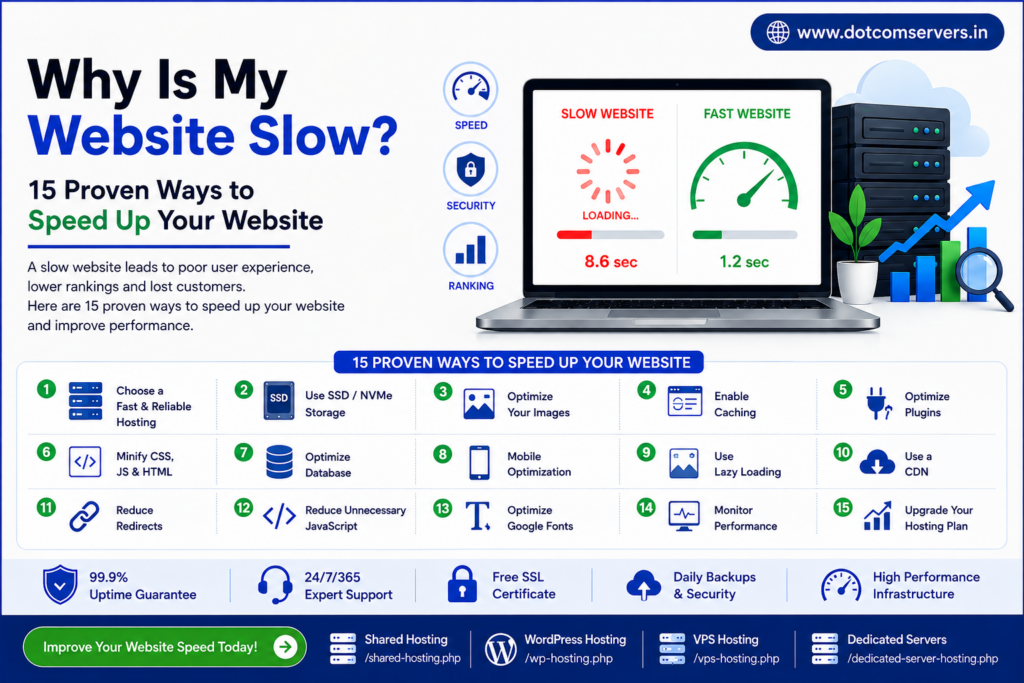
In this guide, we explain 15 practical ways to speed up your website, from optimizing images and enabling caching to choosing the right hosting infrastructure.
Why Is My Website Slow?
There is rarely just one reason behind a slow website.
Your website may be slow because of:
- Slow server response
- Insufficient hosting resources
- Large images
- Too many WordPress plugins
- Unoptimized JavaScript
- Large CSS files
- Poor caching
- Unoptimized database
- Too many third-party scripts
- Poor mobile optimization
- Outdated software
- Excessive redirects
- Slow DNS
- Poorly configured hosting
- High traffic exceeding available resources
Before making changes, it is important to measure your website performance and identify the actual bottleneck.
How Website Speed Works
When someone opens your website, several things happen before the page becomes visible.
A simplified process looks like this:
Visitor
↓
DNS Lookup
↓
Server Connection
↓
Server Processing
↓
HTML Response
↓
CSS + JavaScript + Images
↓
Browser Rendering
↓
Website Appears
If any part of this process is inefficient, your website can become slow.
That is why website optimization should consider both server-side performance and front-end performance.
15 Proven Ways to Speed Up Your Website
1. Choose a Reliable Web Hosting Provider
Your hosting environment is one of the first things you should examine when your website is slow.
Your hosting server delivers:
- HTML
- Images
- CSS
- JavaScript
- Databases
- Applications
- Other website resources
If your hosting plan does not have enough resources for your website’s workload, visitors may experience slow response times.
When choosing hosting, consider:
- CPU
- RAM
- Storage
- SSD/NVMe
- Network performance
- Server location
- Uptime
- Scalability
- Security
- Technical support
DotComServers currently offers multiple hosting options, including Shared Hosting, WordPress Hosting, VPS Hosting, and Dedicated Server solutions.
Explore:
DotComServers Web Hosting
2. Upgrade Your Hosting Resources
Sometimes your website is not slow because the website itself is poorly designed.
Your hosting resources may simply be insufficient.
For example, a website that originally received 100 visitors per day may eventually receive thousands of visitors.
As traffic and application requirements increase, your website may require:
- More CPU
- More RAM
- Faster storage
- Higher network capacity
- Better server configuration
When should you consider upgrading?
Consider an upgrade if you notice:
- High CPU usage
- High RAM usage
- Slow database queries
- Server overload
- Frequent timeouts
- Slow response during traffic spikes
- Resource-limit warnings
For growing websites, a VPS can provide more control and resources than basic shared hosting.
3. Optimize Your Images
Large images are one of the most common causes of slow websites.
For example, uploading a 5 MB photograph when the page only needs a 150 KB optimized image unnecessarily increases page size.
Image optimization checklist
- Resize images before uploading
- Compress images
- Use modern formats such as WebP or AVIF where appropriate
- Use responsive image sizes
- Enable lazy loading where appropriate
- Remove unnecessary images
- Avoid uploading huge images directly from cameras
Example
Instead of uploading:
company-office-image-5000x3500.jpg
resize it to the actual dimensions required by the webpage.
4. Use SSD or NVMe Storage
Storage performance can influence server and application workloads.
SSD storage generally provides faster storage access than traditional hard drives, while NVMe can provide even higher storage performance for compatible workloads.
This can be particularly useful for:
- WordPress websites
- E-commerce websites
- Databases
- SaaS applications
- Web applications
- Business websites
DotComServers lists SSD storage across its hosting offerings and NVMe storage on its VPS plans.
View DotComServers VPS Hosting
5. Enable Website Caching
Caching allows frequently requested resources to be stored and served more efficiently.
Without effective caching, your server may need to process the same content repeatedly.
Common caching methods include:
Browser Caching
Stores resources in the visitor’s browser.
Page Caching
Stores generated webpage content.
Object Caching
Stores frequently requested database objects.
Server-Side Caching
Uses server infrastructure to improve content delivery and application performance.
For WordPress websites, properly configured caching can make a significant difference.
6. Optimize Your WordPress Plugins
If you use WordPress, your plugins can affect performance.
However, the number of plugins alone does not determine website speed.
A poorly coded plugin can create more performance problems than several well-optimized plugins.
Regularly review:
- Outdated plugins
- Unused plugins
- Duplicate functionality
- Resource-heavy plugins
- Poorly configured plugins
Recommended approach
Install → Test → Measure → Optimize → Remove unnecessary plugins
DotComServers’ WordPress Hosting includes WordPress-focused services such as one-click installation, free WordPress transfer, themes/plugins installation assistance, and malware scanning.
DotComServers WordPress Hosting
7. Use a Lightweight WordPress Theme
Your WordPress theme controls a significant part of your website’s front-end structure.
A theme with unnecessary:
- Animations
- Scripts
- Fonts
- Widgets
- Design elements
- Third-party integrations
can increase page size and processing requirements.
Choose a theme based on:
- Performance
- Mobile responsiveness
- Clean code
- Compatibility
- Regular updates
- Required functionality
Do not choose a theme simply because it has hundreds of visual features.
8. Minify CSS, JavaScript and HTML
Your website may contain files with unnecessary spaces, comments, formatting, and characters.
Minification reduces unnecessary code characters while preserving functionality.
Common optimization targets include:
- HTML
- CSS
- JavaScript
You should always test your website after minification because incorrectly configured optimization can sometimes cause functionality problems.
9. Reduce Unnecessary JavaScript
JavaScript can make websites interactive, but excessive JavaScript can increase page processing time.
Review third-party scripts such as:
- Chat widgets
- Analytics
- Advertising scripts
- Social media widgets
- Tracking scripts
- Popups
- Marketing tools
Ask yourself:
Does this script provide enough business value to justify its performance cost?
If not, remove it.
10. Optimize Your Database
Database-heavy websites can become slower over time.
This is especially relevant for WordPress and e-commerce websites.
Your database may contain:
- Old revisions
- Spam comments
- Temporary data
- Expired transients
- Unused records
- Large log tables
Before making database changes, create a reliable backup.
Then optimize the database carefully.
For larger websites, database performance should also be monitored at the server level.
11. Use Lazy Loading
Lazy loading delays the loading of certain resources until they are actually needed.
For example, an image far below the first screen does not necessarily need to load immediately.
Lazy loading can be useful for:
- Images
- Videos
- Embedded content
- Iframes
This can reduce the amount of content loaded during the initial page view.
12. Optimize Your Website for Mobile
A website can be fast on a desktop computer but slow on a mobile device.
Mobile visitors may have:
- Slower connections
- Limited processing power
- Smaller screens
- Higher network latency
Make sure your website is:
- Responsive
- Lightweight
- Easy to navigate
- Fast on mobile
- Free from unnecessary popups
- Using properly sized images
Test important pages on real mobile devices as well as performance-testing tools.
13. Reduce Redirects and Broken Links
Redirects are useful when URLs change, but unnecessary redirect chains can create additional requests.
For example:
URL A → URL B → URL C → Final Page
is less efficient than:
URL A → Final Page
Regularly check your website for:
- Broken links
- Redirect chains
- Incorrect redirects
- Old URLs
- 404 pages
Keeping your website structure clean can improve both user experience and site maintenance.
14. Use a Content Delivery Network
A Content Delivery Network (CDN) distributes cached website resources across multiple locations.
This can help visitors access static resources from infrastructure closer to their location.
CDNs can be particularly useful for websites with:
- International visitors
- Large image libraries
- Video content
- High traffic
- Global customers
However, CDN configuration should be tested carefully.
A CDN is not a replacement for a properly configured origin server.
15. Upgrade to VPS or Dedicated Hosting When Your Website Outgrows Shared Hosting
Shared Hosting can be a practical starting point for many websites.
But as your website grows, you may need more resources and control.
You may want to consider VPS hosting when:
- Traffic is increasing
- CPU usage is consistently high
- RAM requirements are growing
- Your application needs custom configurations
- You need root access
- You are running a database-intensive application
- You operate an e-commerce platform
- You run SaaS or business applications
For larger workloads, Dedicated Servers can provide an entire physical server environment.
DotComServers Dedicated Servers
How to Check Why Your Website Is Slow
Before changing your hosting plan, investigate the problem.
A useful troubleshooting process is:
Step 1: Test the Website
Measure your website performance using reputable performance-testing tools.
Step 2: Check Server Response
Determine whether the server takes too long to return the initial response.
Step 3: Check Page Size
Look for:
- Large images
- Large JavaScript files
- Large CSS files
- Videos
- Third-party scripts
Step 4: Check WordPress
Review:
- Plugins
- Themes
- Database
- Updates
- Caching
Step 5: Check Hosting Resources
Look at:
- CPU
- RAM
- Disk usage
- Network usage
- PHP workers
- Database load
Step 6: Optimize
Fix the biggest bottleneck first.
How Hosting Can Affect Website Speed
Think of your website as a restaurant.
Website = Restaurant
Hosting Server = Kitchen
CPU/RAM = Kitchen Staff
Storage = Refrigerator/Warehouse
Network = Delivery System
If the kitchen is overloaded, orders take longer.
Similarly, if your hosting environment is overloaded or under-resourced, website requests can take longer to process.
That is why choosing hosting based only on price may not be the best long-term strategy.
Shared Hosting vs VPS for Website Speed
| Feature | Shared Hosting | VPS Hosting |
|---|---|---|
| Cost | Lower | Higher |
| Management | Easier | More control |
| Resources | Shared environment | Allocated virtual resources |
| Root Access | Usually unavailable | Available on suitable plans |
| Custom Configuration | Limited | Greater flexibility |
| Scalability | Limited | Better |
| Growing Websites | May require upgrade | Often better suited |
| Developers | Basic requirements | More control |
The right option depends on your website’s actual resource requirements.
When Should You Upgrade Your Hosting?
You should investigate a hosting upgrade when:
Your website is consistently slow
Especially when optimization has already been performed.
Traffic is increasing
More visitors can create higher CPU, memory, database, and network demand.
Your server reaches resource limits
Repeated resource-limit warnings are a strong reason to investigate your hosting environment.
Your application requires custom configuration
VPS or Dedicated Hosting can provide more control.
Your business depends on website availability
For e-commerce, SaaS, lead-generation, and business-critical applications, infrastructure reliability becomes increasingly important.
DotComServers Hosting Solutions
DotComServers offers multiple hosting options for different website and application requirements.
Shared Hosting
Suitable for websites that need an accessible hosting environment with features such as SSD storage, SSL, cPanel, migration support, and 24/7 support.
Explore DotComServers Shared Hosting
WordPress Hosting
Designed specifically for WordPress websites, with features including one-click installation, WordPress transfer, themes/plugins installation assistance, and malware scanning.
Explore DotComServers WordPress Hosting
VPS Hosting
Suitable for websites and applications that need more control and resources.
DotComServers currently lists VPS features including NVMe storage, dedicated IPv4, full root access, Linux/Windows options, and managed hosting options.
Explore DotComServers VPS Hosting
Dedicated Servers
Dedicated infrastructure can be suitable for larger websites, applications, databases, and resource-intensive workloads.
DotComServers lists dedicated server configurations with features including full root access, Linux/Windows options, 1 Gbps network options, and managed-plan availability.
Explore DotComServers Dedicated Servers